

Agent usage is exploding and in Microsoft 365, agents aren’t monitored by default. Even though it’s early days for tools that can monitor agents, Microsoft’s newly released Agent 365 evolves this new category with some powerful capabilities.
Here are some tips for using Microsoft Agent 365 and related tools to monitor agents.
Solutions discussed in this post:
- Microsoft Agent 365 provides agent inventory, controls, and monitoring through the M365 admin center.
- Entra ID features agent identity restrictions via Conditional Access.
- Defender XDR can track agents through threat detections.
- Purview finishes off the pack with information protection and compliance.
This is part 1 of a two-part series. Part 1 covers the high-level building blocks, onboarding Microsoft-native agents and SaaS AI platforms, and validating the result. Part 2 is the deeper dive: building and onboarding a custom agent with the Agent 365 SDK.
-
Scope: this post covers onboarding and visibility, including how to get agents registered, reporting, and huntable.
-
Prerequisites: Agent 365 license (which likely requires E5+ Copilot), Entra ID P2 (recommended), and Admin role access to Admin Center, Defender, Purview and Entra.
01 – Getting started: Agent use cases
Understand how your organization is using agents and where they will be used. This determines what methods you need for admin controls and monitoring.
|
Use case |
Where the Agent runs |
Onboarding method |
Monitoring surfaces |
|
Prebuilt Microsoft agents (M365 Copilot agents, Researcher, Analyst) |
M365 cloud |
Out of the box — license + connectors |
Admin center, Defender, Purview |
|
Low-code agents built in Copilot Studio |
M365 cloud / Power Platform |
Out of the box — license + connectors |
Admin center, Defender, Purview |
|
Custom agents (Azure AI Foundry or your own code) |
Azure |
Agent 365 SDK — see Part 2 |
Admin center, Defender, Purview |
|
SaaS AI platforms (Claude Enterprise, ChatGPT Enterprise) |
Vendor cloud (SaaS) |
Native connector / marketplace plugin — varies by vendor |
Admin center, Defender, Purview |
|
Developer / CLI agents on workstations |
Local machines |
Agent 365 SDK — see Part 2 |
Admin center, Defender, Purview |
|
Standalone AI apps (Claude / ChatGPT Free, Plus, Team) |
Individual browser (shadow IT) |
Not onboardable — endpoint telemetry via Defender for Endpoint |
Defender (network logs), endpoint DLP |
The first two rows are covered in section 03 - Onboarding Microsoft-Native Agents, below; SaaS platforms and shadow IT have their own section in 06 – Connecting SaaS AI platforms and shadow IT; the SDK rows are covered in Part 2.
02 – The building blocks
Of the four planes that work together, each has one specific job, one configuration location, and one place it's used day-to-day:
- Identity plane (Entra ID): Every managed agent is a directory object (an agent identity) with owners, sponsors, permissions, and sign-in logs. This is where governance lives: Conditional Access, risk scoring, least-privilege review.
- Control plane (M365 admin center): The tenant-wide agent registry (inventory, sessions, active users), agent access settings, and the instance approval queue.
- Telemetry plane (Agent 365 + Defender): Agent activity flows through the Agent 365 observability service into Defender's CloudAppEvents hunting table (via the Security-for-AI connectors) and into incidents and alerts.
- Compliance plane (Purview): Audit records, DSPM for AI posture, and DLP over agent interactions.
03 – Common steps for onboarding Microsoft-native agents
Copilot Studio and other Microsoft-built agents register their identities and send activity telemetry in the required format automatically.
A few common points that can help shed light on shadow AI when configuring agent monitoring:
- Assign the Agent 365 license to at least one user (unassigned = invisible).
- You’ll need Agent 365 licenses to monitor agents.
- Agent 365 is included in M365 E7 license and available as a standalone add-on (standalone Agent 365 license has prerequisites: M365 E5 and Copilot).
- Assign Agent 365 licenses to USERS in the M365 admin center under Billing > Licenses > Agent 365 > Assign Licenses.
- Note that a purchased but unassigned Agent 365 license is functionally identical to no license. You can see a list of all agents in the M365 admin center under Agents > All Agents.
- Connect both Defender Security-for-AI connectors (M365 connector → activity/hunting; Agent 365 connector → incidents/alerts).
Two of the required connectors are in the Defender portal under Settings > Security for AI. The "Microsoft 365" connector feeds activity ingestion into CloudAppEvents, the advanced-hunting table where agent activity lands; with it disconnected, the table is empty.
The "Agent 365" connector feeds runtime threat detection — incidents and alerts. Both should be connected. In the lab, telemetry was accepted for days while the disconnected M365 connector kept CloudAppEvents empty. - Confirm that the agent appears in the admin center Agents blade and register it.
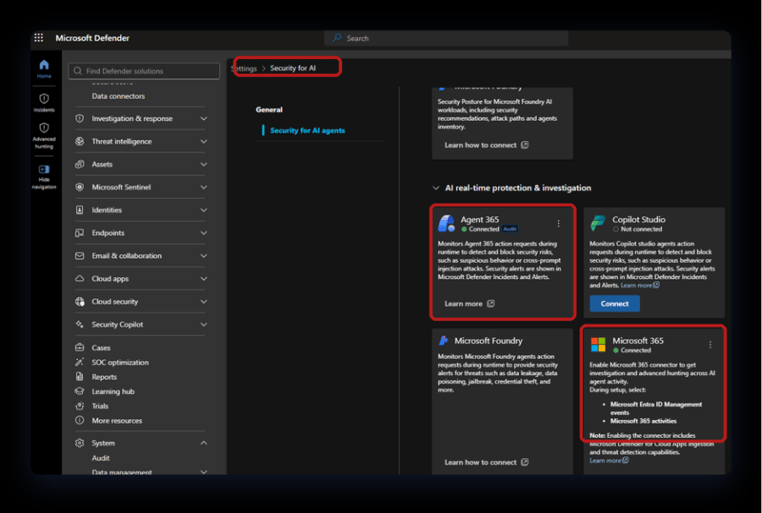
Figure 1. Defender portal > Settings > Security for AI — connect both the Agent 365 and Microsoft 365 connectors.
With the license and connectors in place, native agents appearing in the M365 admin center Agents blade can be registered, controlled and tracked.

Figure 2. M365 admin center > Agents > All agents — the tenant-wide agent registry.
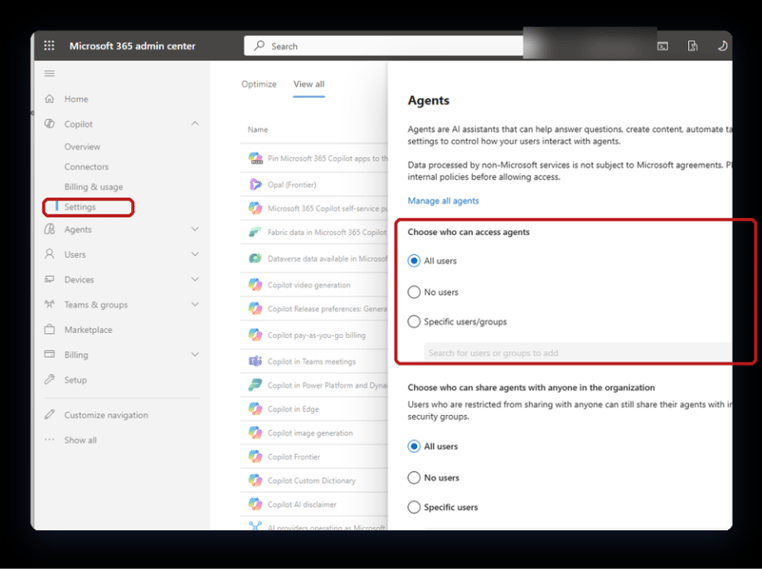
Figure 3. M365 admin center > Copilot > Settings — allow user access to agents. Choose carefully!
04 – Entra ID: Agent identity and governance
Each managed agent is a first-class identity in Entra. Not a user, not an ordinary service principal, but an agent identity with its own governance surface:
- Inventory the identities: Entra ID > Agents > Agent identities lists every agent identity with status, owners, sponsors, and creation date. Reconcile this list against the admin center registry; agents with no owner or sponsor are accountable to no one.
- Audit the blueprints: A blueprint is the parent definition agents are created from. Blueprints configured with broad scopes hand every child agent the same permissions — review blueprints for enumerated, least-privilege scopes before reviewing individual agents.
- Apply conditional access: Conditional Access for agent identities can scope to all agent identities with a block control — the high-value pattern blocks on high agent risk, turning an ID Protection risky-agents signal into automatic containment (ID Protection for agents requires Entra ID P2). Build the policy in report-only mode first.

Figure 4. Entra Admin Center > Conditional Access > 2 useful Agent templates.
05 – Purview: Activated audit for Agent visibility
Purview tracks agent interactions through its Data Security Posture Management (DSPM) for AI setup tasks; activating Microsoft Purview Audit is the required first step.
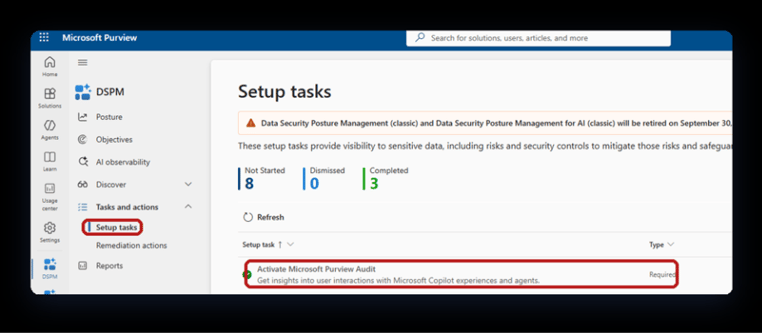
Figure 5. Purview > DSPM > Tasks and actions > Setup tasks — the agent-visibility setup checklist.
After the setup tasks: DSPM > AI observability shows agent interaction posture, and DSPM > Discover > Apps and agents lists the AI apps and agents Purview has discovered.
06 – Connecting SaaS AI platforms and shadow IT
Not every third-party AI tool needs SDK work. Enterprise SaaS editions ship varying levels of native integration, and Defender for Endpoint adds a baseline telemetry layer for everything else.
|
AI platform & edition |
Deployment model |
Agent 365 (control plane) |
Defender (CloudAppEvents) |
Purview (DLP & audit) |
|
Claude Enterprise |
SaaS website / portal |
Native (via M365 connector / marketplace plugin) |
Full activity — actions and full user context via the API connector |
Full scanning — proactive, at rest, and in transit |
|
ChatGPT Enterprise |
SaaS website / portal |
Partial — visible as a "data source" only |
Full audit via the Purview-to-Sentinel bridge, plus endpoint telemetry via Defender for Endpoint |
Full scanning, configured via the Purview Data Map |
|
Custom OpenAI agents |
Azure OpenAI / SDK |
Full — deep model control |
Full security telemetry — native AiInteractionEvents table |
Full logs via SDK hook routing |
|
Claude / ChatGPT standalone (Free, Plus, Team) |
Individual browser (shadow IT) |
None — unmanaged shadow applications |
Endpoint network logs only, via Defender for Endpoint network protection |
Endpoint DLP only (Purview browser extension limits) |
How logs reach CloudAppEvents
CloudAppEvents is fed by Microsoft Defender for Cloud Apps (MDCA). Three independent paths land rows in it:
- Agent 365 telemetry: agents (native or SDK-onboarded) report to the Agent 365 observability service, which forwards into the table through the Defender Security-for-AI "Microsoft 365" connector (its setup includes the MDCA ingestion). This produces the agent ActionTypes (InvokeAgent, InferenceCall, ExecuteTool*). The SDK is only about getting telemetry into Agent 365 — the Agent-365-to-Defender leg is the same for native and SDK agents.
- App connectors: MDCA API connectors for SaaS platforms (e.g. the Claude Enterprise connector) deliver full activity with user context, independent of Agent 365.
- Defender for Endpoint: the MDE-to-MDCA integration forwards endpoint network logs, covering any generative AI app a user touches from a monitored device — including standalone apps that can't be onboarded at all.
Endpoint telemetry from Defender for Endpoint
When a user on a monitored machine accesses standalone ChatGPT or Claude in a browser, MDE sends the network signals to MDCA. Hunting in CloudAppEvents then shows:
- the specific user and machine that accessed the tool,
- the timestamps, URLs, and IP addresses visited,
- the volume of data uploaded and downloaded during the session.
KQL — Surface Endpoint-Driven GenAI Traffic (Defender / CloudAppEvents)

CloudAppEvents
| where Timestamp > ago(7d)| where ActionType == "Access"| where Application has_any ("ChatGPT", "Claude", "OpenAI")| project Timestamp, Application, AccountDisplayName, IPAddress| sort by Timestamp desc
The trade-off: endpoint telemetry never contains the prompt or response text. It shows that a user used the tool and how much data moved — not what was said. Prompt-level visibility requires the Purview Data Map / Sentinel bridge (OpenAI) or the native API connector (Claude Enterprise).
07 – Operational use: verifying Agents in Defender
Agent 365 provides detailed logging to the Defender portal. Use Defender to track all agent activity and create custom threat detections for your agents.
Here's an example KQL query for observing activity from a specific agent ID:
KQL — Observe Agent Activity (Defender / CloudAppEvents)

CloudAppEvents
| where Timestamp > ago(1d)| where ActionType in ("InvokeAgent", "InferenceCall", "ExecuteToolBySDK", "ExecuteToolByGateway", "ExecuteToolByMCPServer")| extend d = parse_json(RawEventData)| where tostring(d.TargetAgentId) == "<your-agent-id>" or tostring(d.AgentId) == "<your-agent-id>"| project Timestamp, ActionType, UserId = tostring(d.UserId), AgentId = tostring(d.AgentId), TargetAgentId = tostring(d.TargetAgentId), ConversationId = tostring(d.ConversationId)
Some fields of interest:
- AgentId holds the caller — the calling agent's ID for agent-to-agent calls (agent IDs are listed in the admin center Agents blade), or an all-zeros placeholder when a human starts the run.
- The invoked agent is in TargetAgentId.
- A filter on AgentId alone misses every human-triggered InvokeAgent event — filter on both fields.
The ActionType values are the Defender-side names of the telemetry span types (the span model is covered in Part 2).
What "verified" looks like: rows in CloudAppEvents attributed to the agent and the invoking user, plus session and active-user counts in the admin center Agents blade after the ingestion lag (minutes to hours). HTTP-level success from any sender is not proof — the hunting rows are.
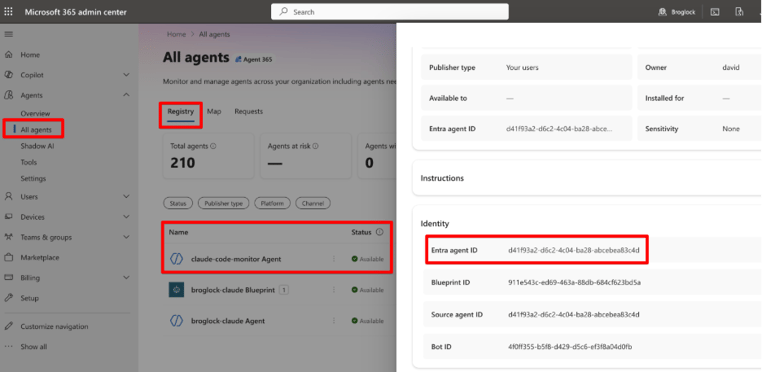
Figure 6. Admin Center > All Agents – registered agent.
08 – Key takeaways
- Start with the use-case map/table: Where an agent runs determines its onboarding path: Microsoft-native agents are out of the box; everything else goes through the SDK (Part 2).
- Agents are not monitored until onboarding is complete: Microsoft-native agents become visible only after the tenant is configured (license assignment + Defender connectors).
- Microsoft-native agents need three things:
- The Agent 365 license assigned to at least one user.
- In Sentinel, enable 2 connectors: Defender Security-for-AI; the M365 connector for activity and hunting, the Agent 365 connector for incidents.
- In Agent 365, configure at least one invocation before any activity appears in the Admin center and Defender (and in Purview enabled Unified Audit Logging).
- Govern the identity, not just the telemetry: Agent identities live in Entra with owners, sponsors, blueprints, and Conditional Access — ownerless agents and over-scoped blueprints are findings.
- Enterprise SaaS editions connect; standalone apps don't: Claude Enterprise has a native connector, ChatGPT Enterprise connects partially via Purview, and standalone Claude/ChatGPT can't be onboarded — Defender for Endpoint still records who accessed them, from where, and how much data moved, but never the prompt text.
- Verify in Defender advanced hunting, not dashboards: Dashboards lag, and ingestion returns HTTP 200 even when everything is dropped — the CloudAppEvents query is the proof that an agent is actually monitored.
Next: Part 2 — building and onboarding a custom agent with the Agent 365 SDK: tenant enablement, the SDK identity model, telemetry requirements, and validation.


